Tuesday, August 14, 2018

How to Get Contacts back on iPhone with iOS 12?


1: Get Contacts Back on iPhone with iCloud (4 options included)

iCloud is a built-in tool that is offered by Apple itself. In fact, iCloud becomes handy in solving various issues related it iPhones. If you are in search of how to get contacts back on iPhone, iCloud can be a handy tool for you. So, we dedicate this section to explain it.
Option 1: Get Contacts back on iPhone via iCloud Sync Setting

As the first option, let’s learn how to get contacts back on iPhone using iCloud Sync Settings.


To synchronize it, you should go to Settings of your iPhone and select iCloud.


Under iCloud, you can find a switch next to “Contacts”. Turn it on to so you can get the contacts loaded on your iPhone.


Option 2: Get Contacts back on iPhone via iCloud.com

In this option, lets see how to get contacts back in iPhone using iCloud.com.


Log into iCloud contacts using a PC, you will be able to select all the contacts. You can do so simply by pressing Ctrl + A to do this.


Then, you should click on the cogwheel icon and choose the option called “Export vCard”. Then, your contacts will be saved as a vCard (file format of .vcf) on your computer.


You can send these *.vcf files as email attachments. Now you can download these files on your iPhone through Safari browser.


Option 3: Get Contacts Back on iPhone via Restore Function

Now, let’s see how to get contacts back on iPhone using the restore function available in your iPhone. If none of the above methods don’t work for you, it is worth trying this option.


Go to iCloud.com. If you haven’t signed into your account yet, you should sign in first.


Then, go to Settings and go down to the Advanced option.


You will then find an option called “Restore Contacts” and just select it.


If you lost videos from iOS Camerall Roll which are nowhere to download again, you can use Gihosoft iPhone Data Recovery to get back deleted videos from iOS device including iPhone, iPad and iPod Touch.


Option 4: Get Contacts back on iPhone via iCloud Backup

If you have already created an iCloud backup, you will be able to get the contacts restored through it. Here’s how to do it.


Turn your iOS device and you will be able to see the Hello screen. If the iOS device is already being set up, you will have to erase its data before start restoring through iCloud. When everything is in order, you should go to Apps & Data screen.


Then, tap on the Restore from iCloud Backup option and use your credentials to sign in to your iCloud account. Select a backup to restore. You can select the backup you need to restore simply by looking at the date and the size of the backup.


At the completion of this process, you will be able to use the iOS device once again as it was. Other files like apps, photos, videos etc. will get restored in the background gradually.


Pros and Cons of Using iCloud Sync Setting, iCloud.com and Restore Function

Here are some of the most notable pros and cons associated with the first three methods we have mentioned above.


Using iCloud


Pros


All those options are free


They are trustworthy options


Cons


They aren’t the easiest ones to follow (they can be too complicated for novice iOS users)


They require substantial amount of time to get restore the contacts


iCloud backup overrides the existing backups


You cannot selectively restore a specific type of file (for instance, contacts only)

2: Get Contacts back on iPhone with iTunes

Apart from the methods we have mentioned above, you can consider using iTunes to get the contacts back on your iPhone. Let’s see how to do it in step by step method.


Launch iTunes software on the computer (no matter whether it is a Mac or a PC) which you generally use to create iTunes backups. Connect the device to the same computer. Be sure that you use the original USB cable to prevent potential erroneous connections.


If prompted, you will have to provide the passcode of the device or accept the message to “Trust This Computer”. All you need to do is to follow the onscreen steps.


Now, you should select the respective iOS device (iPad, iPod, or iPhone) when it is recognized by iTunes and click on ‘Restore’ option to wait until the restoration process get completed.


Pros and Cons of Using iTunes Backup

Here is a list of pros and cons associated with iTunes backup.


Using iTunes


Pros


iTunes is a trusted system that comes with Apple


It is a free method


Cons


iTunes backup overrides the existing backups


You cannot selectively restore a specific type of a file using iTunes (you have to restore the entire backup instead of just restoring the contacts file)


You may also like:

Gihosoft Free Android Data Recovery can help you easily recover lost data such as photos, videos, contacts, text messages, WhatsApp & Viber chats from Google Pixel/XL or other Android phones effortlessly.


Monday, August 13, 2018

How to Unlock iPhone without Siri (iOS 12 Supported) 2019 Guide

How to Unlock iPhone without Siri (iOS 12 Supported) 2019 Guide

Unlock iPhone without Siri


LockWiper can handles all situations with iPhone screen or password. Since it’s not free, you may want to learn some other ways. There are still two ways to unlock iPhone, but they have some limits or disadvantages.
1 Via "Find My iPhone"


Only if “Find My iPhone” is enabled, you can follow these steps to erase your iPhone and remove password remotely.


First of all using your computer or someone else's iOS device, visit icloud.com/find, sign in with your Apple credentials.


Choose “Find iPhone” when you get into the page.


Then you need to choose the option “All devices”. As find my iPhone is already enabled in your device, so you will see there your iPhone listed, you simply need to click on it.


Choose the option “Erase iPhone” and doing so will delete all the data out of your iPhone as well as remove the passcode.


Note: Your iPhone should be connected to network, or this way is not available.


2 In Recovery Mode


Using iTunes to restore iPhone in recovery mode will remove iPhone password at the same time. But sometimes, it may not be easy to put you device into recovery mode. Follow these steps to get your iPhone unlocked.


Step 1: Connect your iPhone to computer and launch iTunes.


Step 2: When iTunes detects your iPhone, put your iPhone into recovery mode:


On iPhone X/8/8Plus: Press and release Volume Up button. Press and release Volume Down button. Hold the Power button until you see iTunes logo on the screen.


On iPhone 7/7 Plus: Hold the Power and Volume Down buttons at the same time and release the buttons until iTunes logo appears.


On iPhone 6s and Earlier: Hold Power and Home buttons at the same times until you see the iTunes logo.You may also like:


If you lost videos from iOS Camerall Roll which are nowhere to download again, you can use Jihosoft iPhone Data Recovery to get back deleted videos from iOS device including iPhone, iPad and iPod Touch.Please check jihosoft iphone data recovery


whatsapp android to iphone


Step 3: On your computer, choose “Restore” from the pop-up window.


Step 4: iTunes will download the software for your iPhone. Wait for it to finish. When it’s done, you can set up your device again.


Difficulties:


Some users complain that it’s hard to get iPhone into recovery mode even after they try several times.


If your internet connection is not so good which cause the downloading process will take more than 15 minutes, your device will exit recovery mode. That means, you need to repeat the Step 2 and Step 3.You may also like:
free photo recovery software
If you lost videos from iOS Camerall Roll which are nowhere to download again, you can use Gihosoft iPhone Data Recovery to get back deleted videos from iOS device including iPhone, iPad and iPod Touch.Please check jihosoft iphone data recovery

Sunday, June 17, 2018

How to Add Songs to iCloud Music Library

Part 1: How to Add Songs to iCloud Music Library
On iPhone/iPad


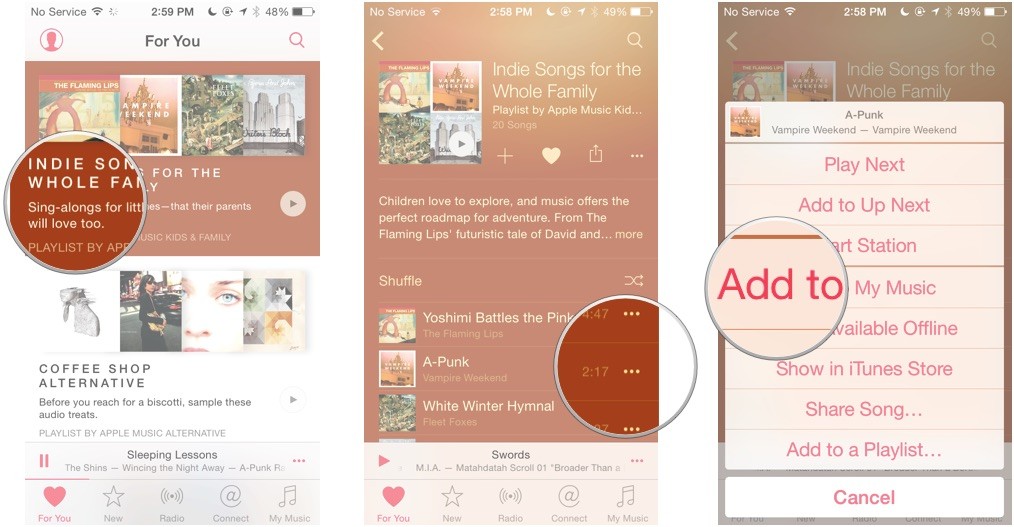
iPhone/iPad users can easily add songs to iCloud music library by taking the following steps.


First, go to the Music app and choose the song to be added.


Click on the 3 dots button in the front of the music.


Then, click on Add to My Music.


On PC/Mac


The selected music will now be added to iCloud music library and will be available for instant play. However, if you intend to add songs to iCloud music library using your PC/Mac, follow the steps below.


First, go to iTunes and choose the song to be added.


Click on the 3 dots button in the front of the music.


Then, click on Add to My Music.


Part 2: How to Save iCloud Music for Offline Play


Using any of Apple’s devices, you can add any song you want to iCloud music library. But, what if you want to play your music offline, is that possible? Yes! Just follow the next steps to save your music and play it anytime offline.
On iPhone/iPad If you lost videos from iOS Camerall Roll which are nowhere to download again, you can use Gihosoft iPhone Data Recovery to get back deleted videos from iOS device including iPhone, iPad and iPod Touch.
Jihosoft iPhone Backup Extractor Extract and recover all types of data from iPhone backup files, such as camera roll photos, videos, SMS, contacts, reminders, WhatsApp, and etc.
Gihosoft Android data recovery Free is a super awesome software specialized in Android file recovery. With this program, you are able to recover deleted photos, music, videos, messages, contacts, call logs, WhatsApp messages, Viber chat history and more from Samsung, Huawei, LG, HTC, Motorola, Google, Oneplus, Sony, Lenovo, ZTE and other Android devices directly. Meanwhile, this Android data recovery software is available for both Windows and Mac platforms.


Open Music app on your iPhone


Choose a song you prefer.


Tap 3 dots at the right side.


Click Make Available Offline.


You are done and can play offline from that moment.
On Mac


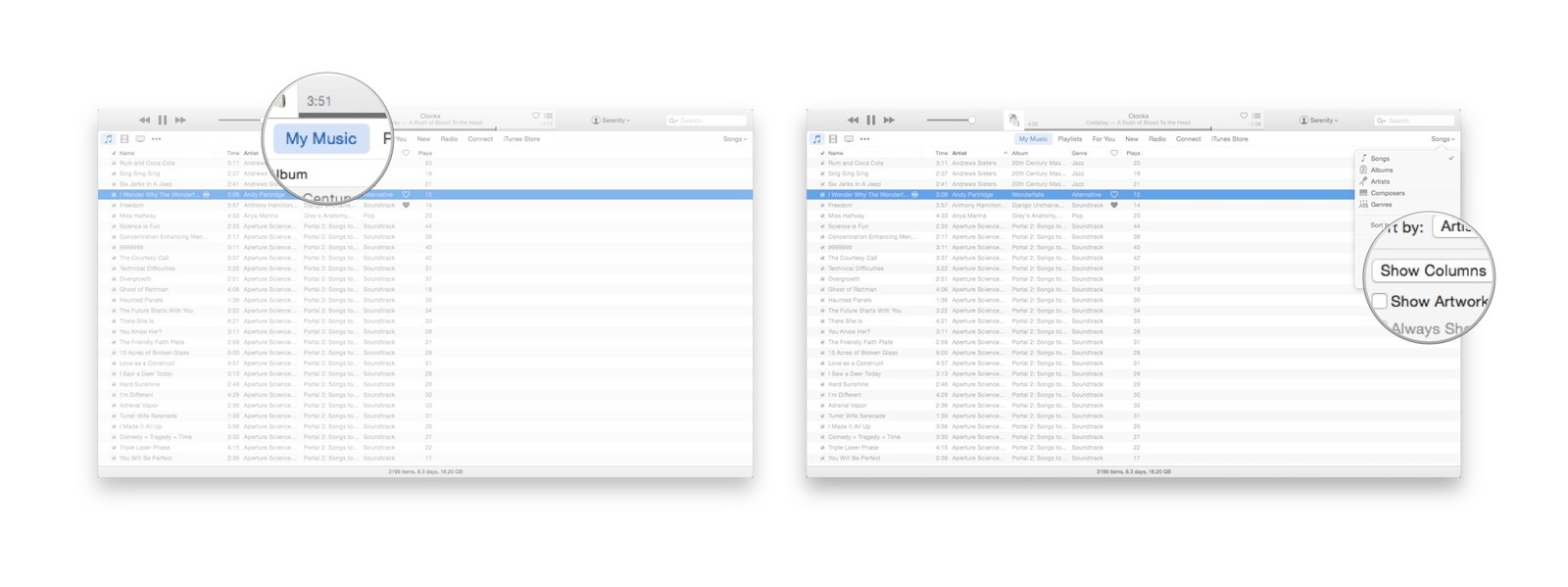
Go to iTunes on your device.


Click on My Music tab.


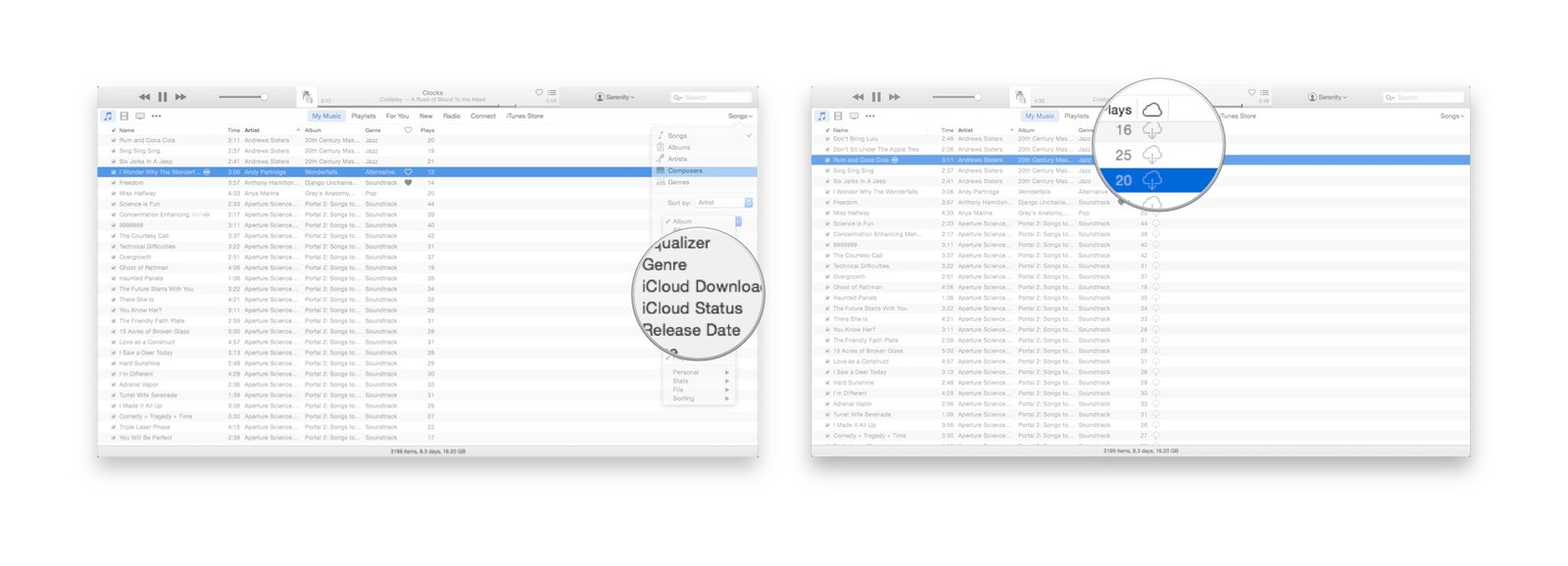
Tap on the view type drop down and choose the Show Columns.Gihosoft iPhone Data Recovery is a professional iPhone Data Recovery software to get back all your lost text message, photo, video, call history, note, contact and more from iPhone/iPad/iPod Touch. It offers a full solution to recover your lost data in different tough situations. Besides recovering data directly from iPhone, iPad and iPod touch, it also allows you to recover data from iCloud and iTunes backup files.


Tap the iCloud Download option.


Locate the cloud icon with a downward arrow and click to start downloading the track.


You are done and can play offline from that moment.
Note: Restrictions to add songs to iCloud music library


When trying to add music to iCloud music library from your iPhone or Mac, there could be some restriction issues. You should know that before adding songs, check to see if they are encoded in the formats of WAV, ALAC, or AIFF. All of these are usually transcoded to a separate temporary AAC 256 Kbps file locally, but the original files will remain unchanged.


When uploading, ensure that your iTunes iCloud Music Library is enabled so that no tracks will be lost between your PC and mobile devices.


You also need enough iCloud Space to save your music to iCloud. When you exceed free 5GB storage, you'll have to pay for more iCloud storage plan.


Sponsor ads:


Gihosoft Free iPhone Data Recovery:https://www.gihosoft.com/iphone-data-recovery-free.html


Gihosoft iPhone Data Recovery Free


Free iPhone Data Recovery Software for Windows/Mac


Recover up to 12+ types of files, including contacts, SMS, photos, WhatsApp, Viber, notes, etc.


Restore lost data from iOS devices directly or from iTunes and iCloud backup


Recover iPhone data lost due to iOS upgrade/jailbreak, accidental deletion, device lost or broken


Support all the latest iPhone, iPad and iPod Touch


Both Free and Pro version.


If you lost data after you updated to a new iPhone, you can always use Gihosoft iPhone Data Recovery to get the data back from the old iPhone or backup.You may also like: iphonerecovery.com


If you use android phones, please choose Gihosoft Android Data Recovery.


With Gihosoft Android Data Recovery, no longer afraid of data loss!


Must read:Youtube video downloader for pc


Gihosoft RePicvid Free Photo Recovery Software provides a free photo recovery software for windows to help users recover the deleted or lost photo for free.


Jihosoft Android Data Recovery: the best Android Data Recovery software for Windows and Mac to recover deleted contacts, messages, photos, videos, WhatsApp and etc from Android devices.


jihosoft Free iPhone Data Recovery

Tuesday, August 8, 2017

Team Phoenix has finally released a working Jailbreak for iOS 9.3.5

After so many months, Team Phoenix has finally launched a Jailbreak for iOS 9.3.5 for iPhone and iPad. Thanks to the hacker Siguza and Tihmstar who has made it possible after so many difficulties.

Team Phoenix has finally launched a Jailbreak for iOS 9.3.5 for iPhone and iPad. Thanks to the hacker Siguza and Tihmstar

The iOS 9.3.5 Jailbreak is semi-untethered and can be Jailbroken on 32 bit iOS devices running 9.3.5. The Jailbreak process is all same as the previous one using a computer.

The good news is a new Jailbreak has been launched after a long wait and the bad news is it does not support 64 bit devices like iPhone 5S, iPhone 6/6S, iPhone 7/7Plus. The Jailbreak is only for 32 bits devices running iOS 9.3.5 Firmware. So if your iOS device is running iOS 9.3.5 and 32 bit then your device is eligible to be Jailbroken. If you lost videos from iOS Camerall Roll which are nowhere to download again, you can use Gihosoft iPhone Data Recovery to get back deleted videos from iOS device including iPhone, iPad and iPod Touch.
Jihosoft iPhone Backup Extractor Extract and recover all types of data from iPhone backup files, such as camera roll photos, videos, SMS, contacts, reminders, WhatsApp, and etc.
Gihosoft Android data recovery Free is a super awesome software specialized in Android file recovery. With this program, you are able to recover deleted photos, music, videos, messages, contacts, call logs, WhatsApp messages, Viber chat history and more from Samsung, Huawei, LG, HTC, Motorola, Google, Oneplus, Sony, Lenovo, ZTE and other Android devices directly. Meanwhile, this Android data recovery software is available for both Windows and Mac platforms.


Here is How to Jailbreak iOS 10.3.5 using Phoenix JailbreakTool

Jailbreak Website: phoenixpwn.com

Siri Shortcuts, Screen Time, and iMessage Screen Effects Coming to macOS This Year

Siri Shortcuts, Screen Time, and iMessage Screen Effects Coming to macOS This Year iOS apps and features including Shortcuts, Screen Time, a...